
Windows cannot run the game for MU Online (Fast) - SmartScreen Fix
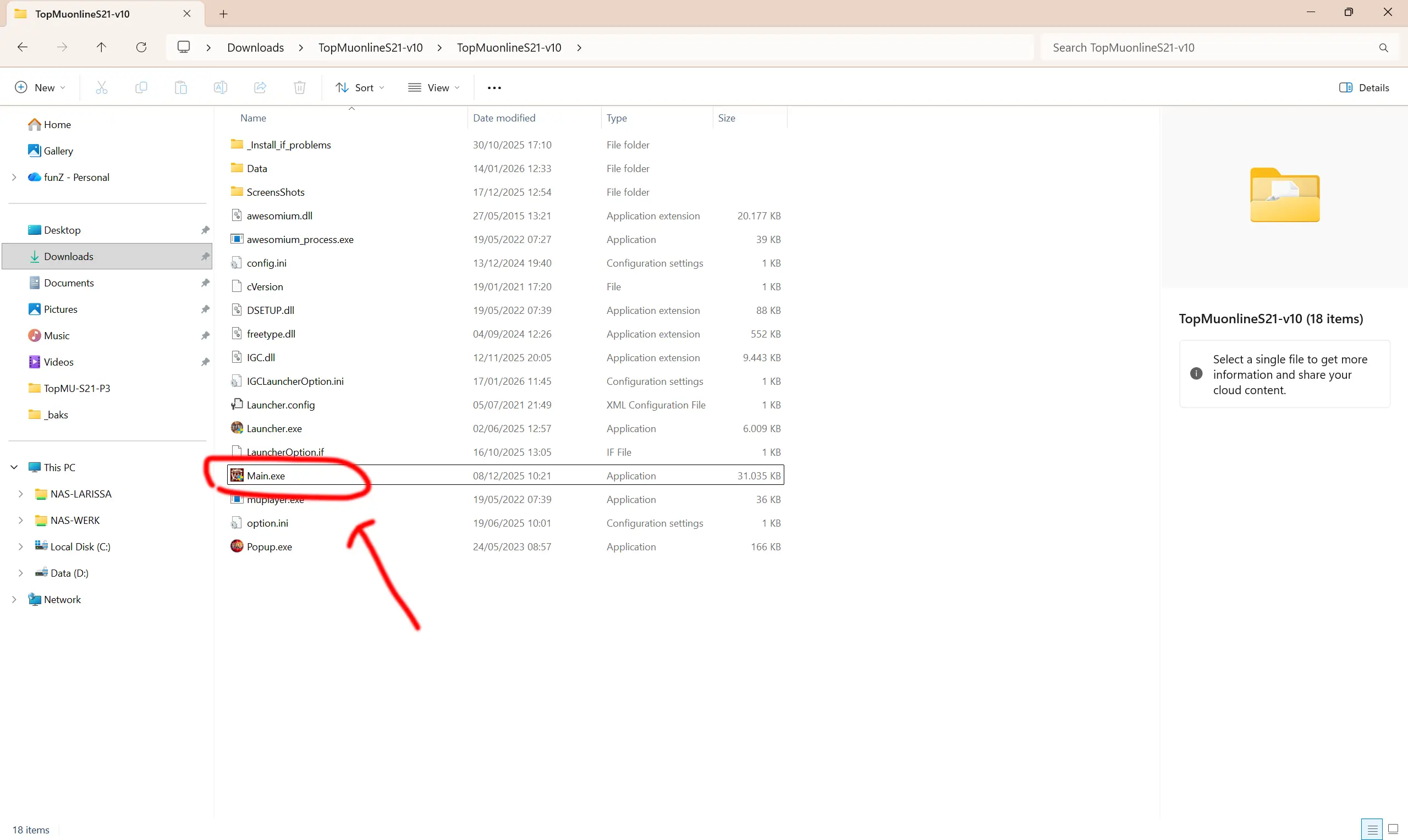
Simple rule: run main.exe first. If Windows blocks it, click More info → Run anyway.
Fast Fix: Do This in 30 Seconds
Open your MU Online folder and start main.exe.
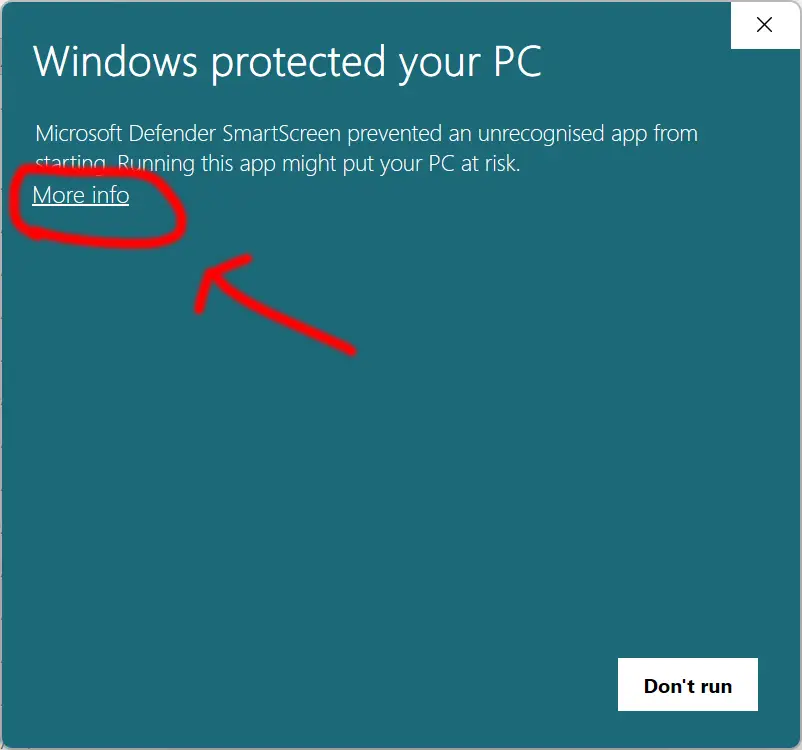
If SmartScreen appears, click More info.
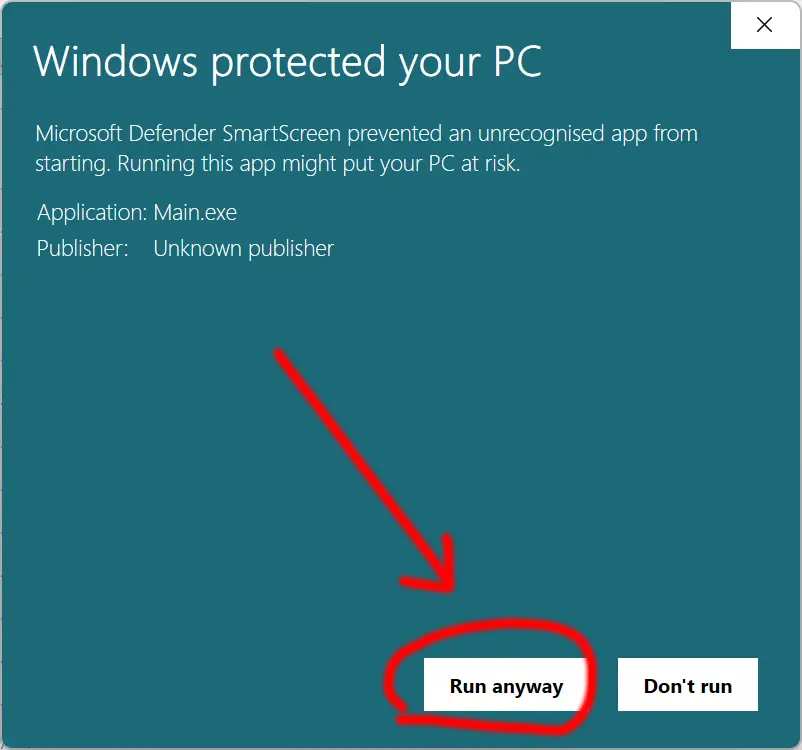
Click Run anyway to start the game.
Run main.exe
click More info
🎮 Game starts
Quick Table: What You See → What to Do
| What you see | Meaning | Fast fix | Best extra fix |
|---|---|---|---|
|
SmartScreen “Windows protected your PC” |
Windows SmartScreen is warning you because the file is new/unknown. | Click More info → Run anyway. | Unblock the file in Properties (see Unblock). |
|
Error “The operation was cancelled by the user” |
A Windows prompt was blocked/closed (SmartScreen or permission prompt). | Right-click main.exe → Run as administrator. | Move MU folder to C:\Games\MUOnline\ + Unblock the file. |
|
No button No “Run anyway” option |
Your PC may be restricted (S mode / company policy / strict protection). | Try on an admin account (or another PC). | Ask PC admin to allow it (recommended for work/school PCs). |
Step-by-Step (With Screenshots)
Step 1: Run main.exe (first time)
Open your MU Online folder and double-click main.exe. This is the best “first start” method.
Step 2: If SmartScreen shows “Windows protected your PC” → click “More info”
Step 3: Click “Run anyway”
Fix: “The Operation Was Cancelled by the User”
If you try to open main.exe or launcher.exe and you see “The operation was cancelled by the user”, do these quick fixes:
Fix A (fastest): Run as Administrator
- Right-click main.exe
- Click Run as administrator
Fix B: Move the MU folder to a simple path
Windows is stricter with files inside Downloads.
- Create: C:\Games\MUOnline\
- Move the full MU client folder there
- Run main.exe again
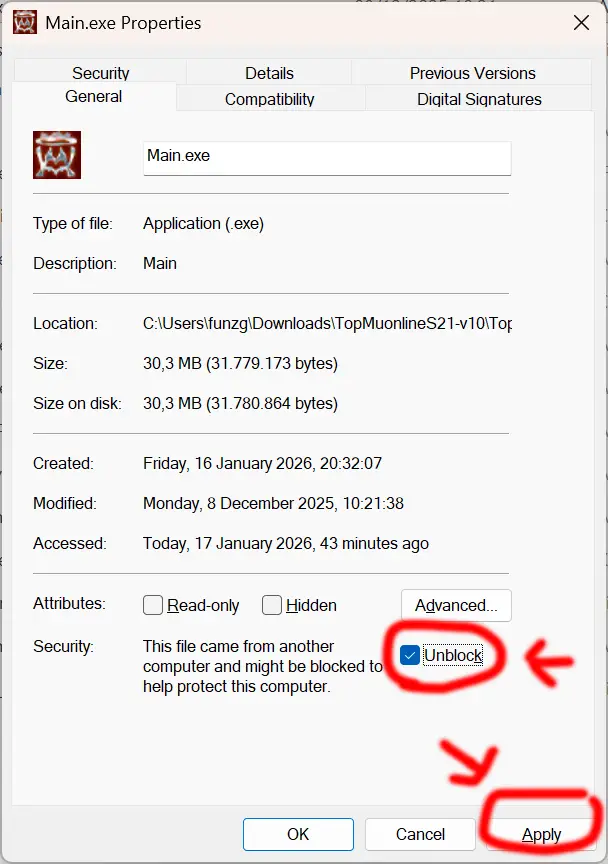
Fix C (recommended): Unblock the file
Follow the steps below (works for both main.exe and launcher.exe): Unblock main.exe / launcher.exe.
Fix D: Check Windows Security “Protection history”
- Open Windows Security
- Go to Virus & threat protection → Protection history
- If MU files were blocked/quarantined, restore only if you trust the download source
Unblock main.exe / launcher.exe (Recommended)
Windows can mark downloaded files as “blocked”. Unblocking often fixes repeated SmartScreen issues.
- Right-click main.exe (or launcher.exe) → Properties
- In the General tab, find “Security” at the bottom
- Check Unblock (if you see it)
- Click Apply → OK
- Run the file again
Safety Checks (Quick)
Only do “Run anyway” if you trust the file. Quick checklist:
- Download from the official server website (not random links)
- Extract the client (do not run from .zip/.rar)
- Scan main.exe with Microsoft Defender or your antivirus
Still Blocked? Get Help (What to Send to Support)
If it still doesn’t work, send support/admin these details:
- Your Windows version (Windows 10 or 11)
- Which file you ran (main.exe or launcher.exe)
- The exact message (“Windows protected your PC” or “operation was cancelled”)
- A screenshot of the warning
Discord support: MU Online Discord – Support & Community
Official downloads: Download Full MU Online Client